9 min read
What would you ask your trading account if it could answer in plain words?
“How is my account?” “What does holding gold overnight cost?” “Why was my order rejected?”
PrimeXBT MCP (short for Model Context Protocol) now lets you do exactly that. It links your PrimeXBT account to an AI assistant such as ChatGPT, Claude, Codex or Claude Code. You type a question, like “What’s my balance?”, and the assistant answers using your real PrimeXBT account. If you want to place a trade, the assistant sets it up and you confirm.
Getting connected takes one link and a PrimeXBT login, with no API keys to create or copy. Here’s how to set it up.
What is MCP trading on PrimeXBT?
PrimeXBT MCP connects your trading account to the AI assistant you already use. Built on PrimeXBT’s API, it gives your assistant access to your account information, market prices and trading conditions.
It is not PrimeXBT’s own AI and it does not make trading decisions: your assistant answers your questions and sets up your orders, and you decide what to do.
The connection works with crypto perpetual futures and CFDs, on both demo and live accounts on the PXTrader 2.0 platform only.
How to connect ChatGPT or Claude to your PrimeXBT account
Connecting takes five steps:
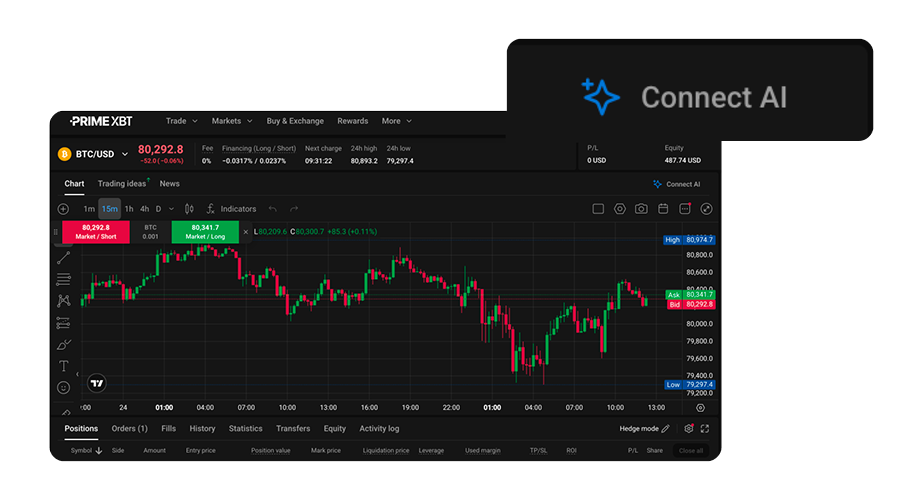
- In the PXTrader 2.0, click Connect AI.
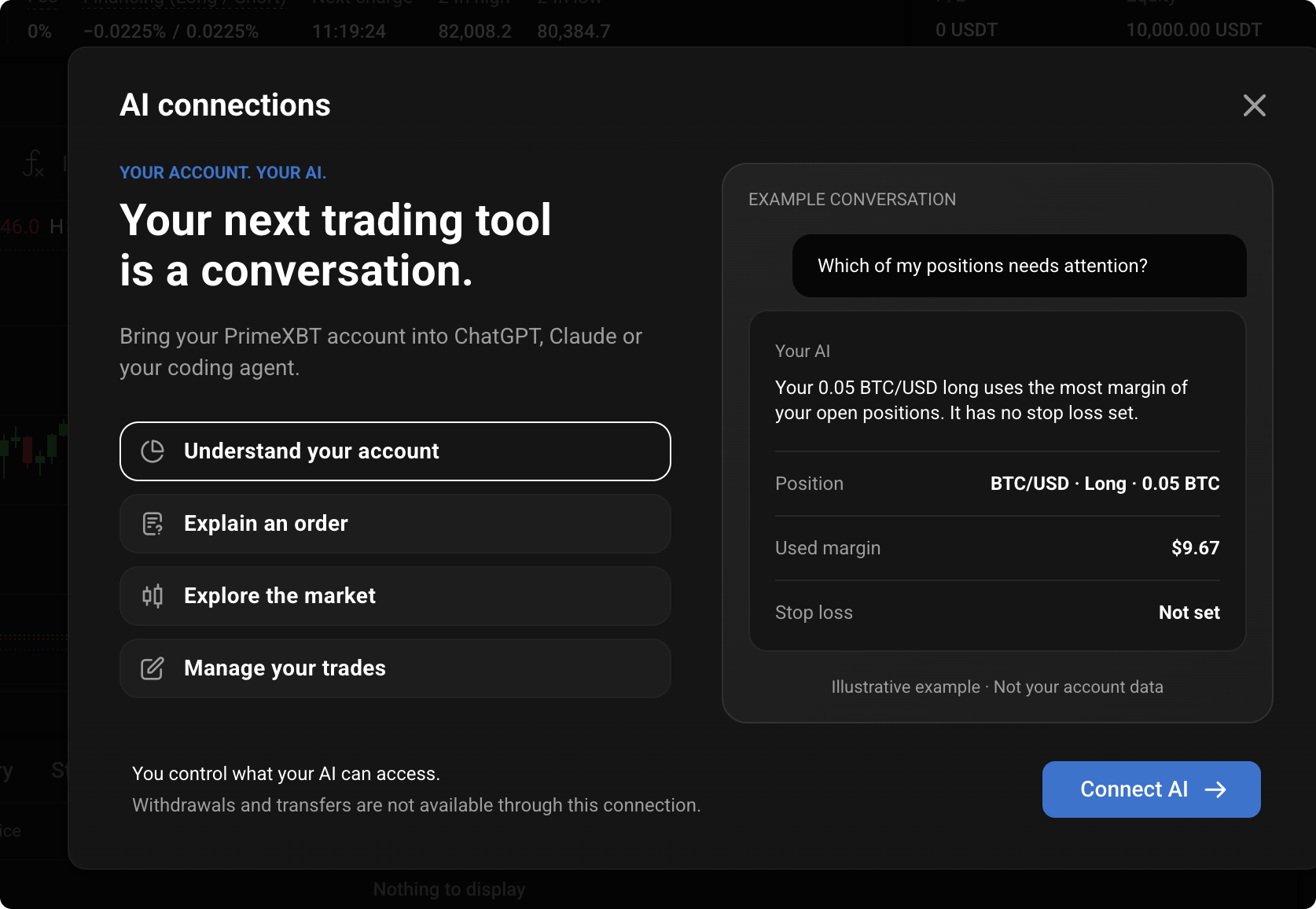
- In the window that opens, click Connect AI again and pick your assistant: ChatGPT, Codex, Claude or Claude Code.
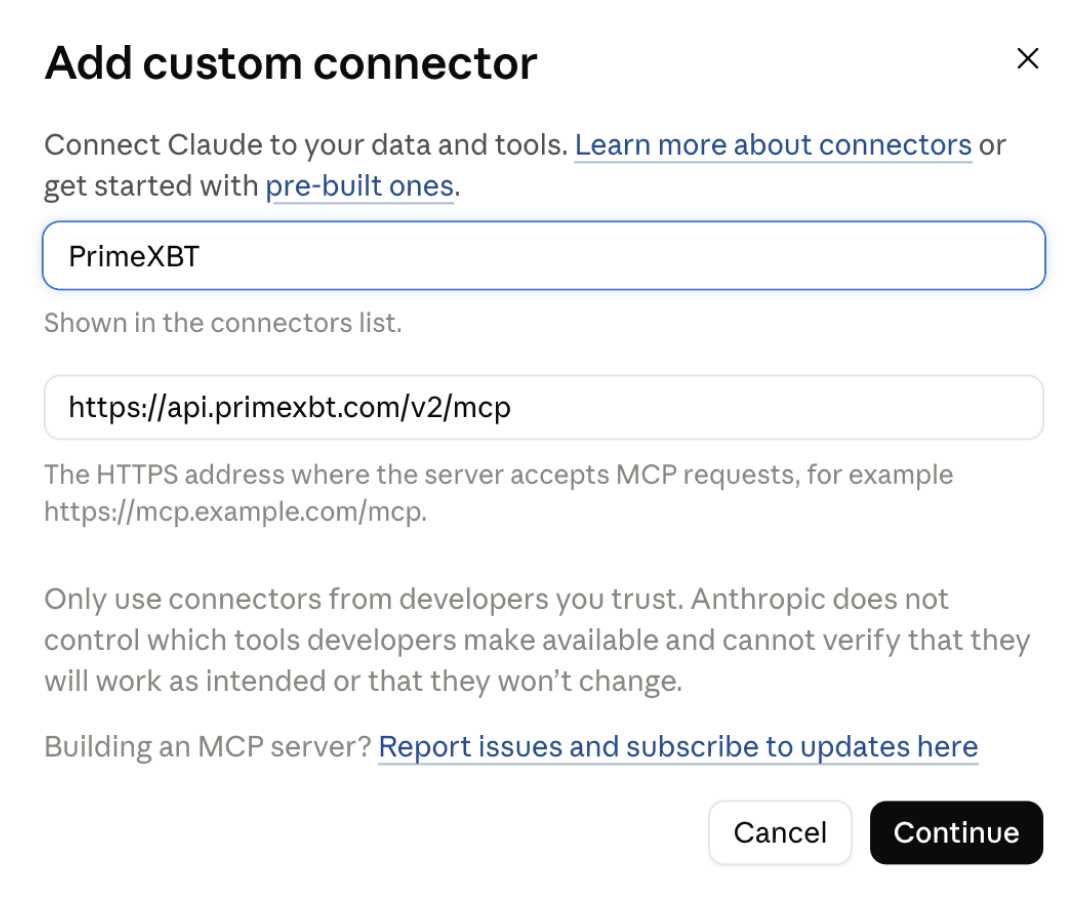
- In your assistant, add PrimeXBT as a custom connector. Paste in this address on Claude: https://api.primexbt.com/v2/mcp. For other AI platforms, follow the instructions specified on the screen.
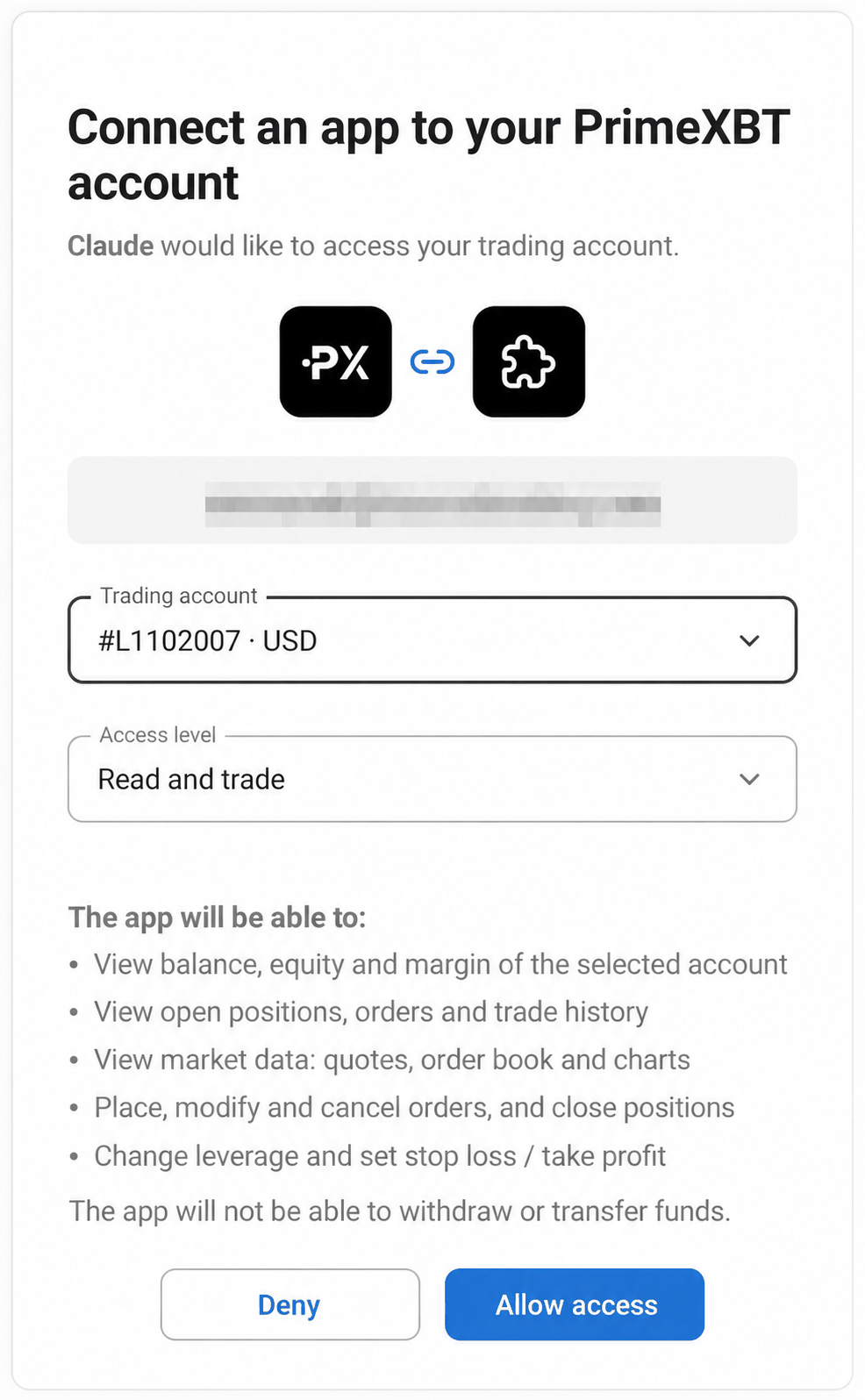
- Sign in to PrimeXBT. Choose your account, then choose whether the assistant can only look (Read only) or look and trade (Read and trade). Click Allow access.
- Start chatting, for example: “Show my PrimeXBT account balance and open positions.”
Some assistants have their own requirements. ChatGPT, for example, needs Developer mode, which comes with the Plus, Pro, Business, Enterprise and Education plans.
*Trading involves risk.
What can you do with PrimeXBT MCP?
PrimeXBT MCP gives your assistant 30 tools. Here are the four main things you can do with them.
Understand your account
Try: “How much available margin do I have?” or ‘What’s the state of my account?” Your assistant looks up your balance, your profit or loss on open trades and how much margin you have free, then lists every open position and order. For each open position it shows the stop-loss, take-profit and liquidation level (the price at which it would be closed out) on the same line. You can also ask for your full trade history. It explains everything in very simple terms so it is suitable for both beginners and more experienced traders.
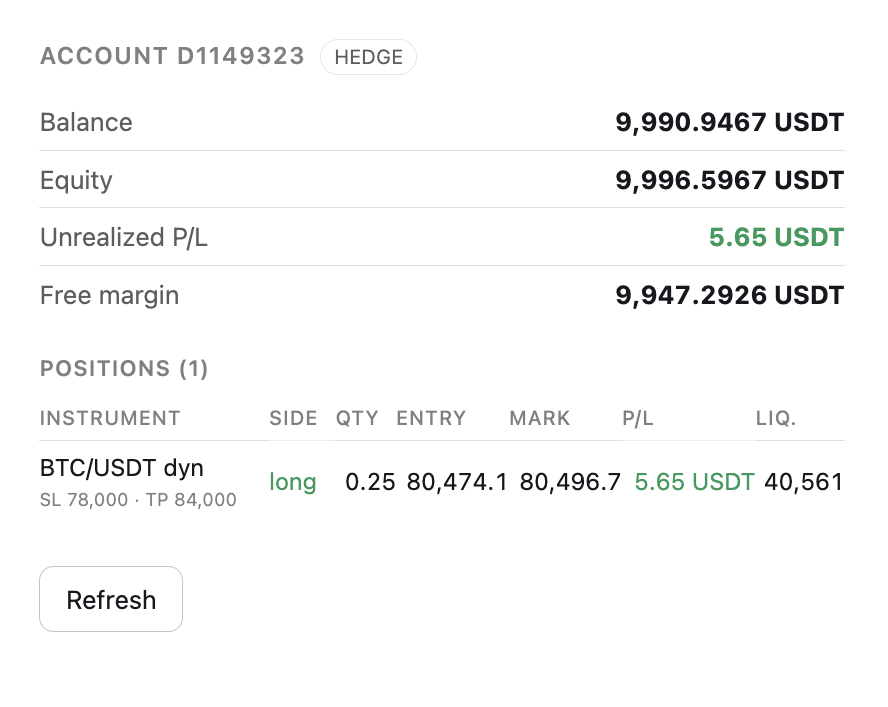
The account card, with one open position after a test trade.
Explain an order
Try: “Why was my order rejected?” If an order can’t go through, for example because there isn’t enough available margin, the assistant gives the reason in plain words and tells you what to change, such as reducing the quantity or adding funds. You can ask about costs the same way. Ask “What does holding gold overnight cost?” over a weekend and the assistant will tell you the normal gold market (XAU/USD) is closed, point you to GOLD 24/7 instead, and show the costs that apply. That is the detail you would normally have to dig out of a specification sheet. You can also ask about leverage limits and account rules.
Explore the market
Try: “What are today’s top movers?” The assistant lists the markets that moved most in the last 24 hours, with each price, the percentage change and how much was traded. Look at the trading volume as well as the percentage: a big jump on very little volume doesn’t always mean a busy market.
Ask for a price and you get the one your account actually trades at, with the price to sell and the price to buy. Ask for a chart and pick any timeframe from 1 minute to 1 month.
Manage your trades
Try: “Buy 0.25 BTC at market, TP 84,000, SL 78,000.” (TP is take-profit and SL is stop-loss.) The assistant comes back with an order card priced by PrimeXBT, showing the price, the order cost (the full value of the position), the margin (the amount needed to open it), the fee, the leverage and the liquidation price. Trading with leverage carries substantial risk, as even a small adverse price movement can result in significant losses.
Below the card are two buttons, Confirm and Re-estimate, with a short countdown. The card stays valid for about a minute; after that, Re-estimate fetches fresh prices. No order is sent until you confirm.
Learn more about order cards and one-time tickets in Trading with your AI assistant.
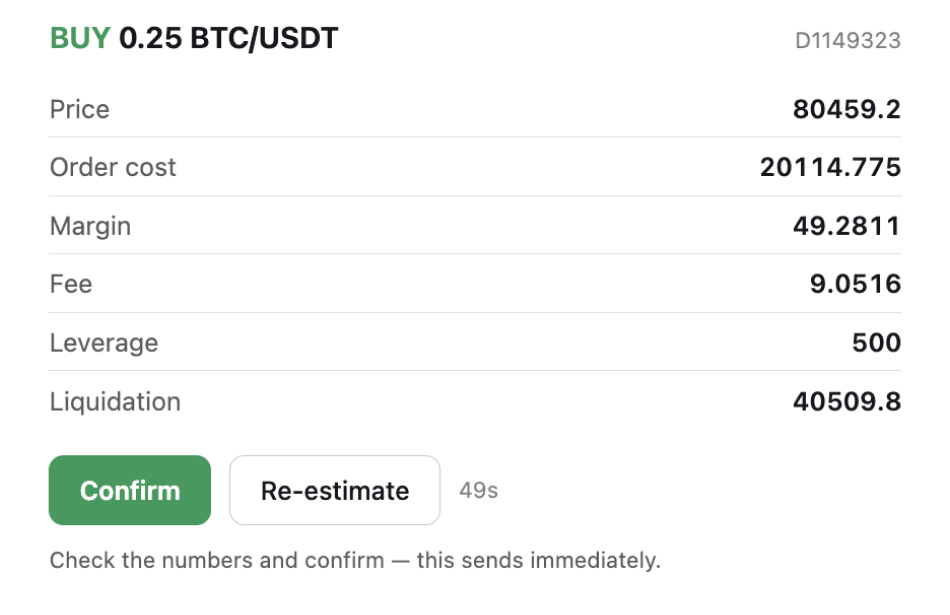
The order card for a test trade on a demo account. Nothing is sent until you confirm.
Market prices can change between the preview and execution, so the final price may differ from the estimate. The stop-loss and take-profit are set at the same time as the order. You can use market, limit and stop orders, add a take-profit and stop-loss, change your leverage, or move the take-profit and stop-loss on a trade that is already open.
Besides the card, the assistant can also explain anything on it in simple terms, such as what margin or a liquidation price means, which is especially helpful if you are still learning.
The assistant uses PrimeXBT account data and trading conditions to answer questions about your account, orders and costs.
You can also ask for a morning summary of your account, a weekly look back at your trades, or a quick scan of the biggest movers. Save the questions you ask most, so you can use them again.
How do you stay in control?
Using AI for trading does not mean handing over control. Your assistant never trades on its own. It looks things up, shows you the details and waits for you.
When you connect, you choose Read only or Read and trade for one account, and you can switch access off whenever you like. Before an order goes out, the assistant shows you the details and waits for your confirmation. Each confirmation works once, so repeating a request can’t open a second trade, and the connection can’t be used to withdraw or transfer funds. PrimeXBT doesn’t see your chat, only the actions your assistant asks for. Your assistant’s own privacy settings cover the chat itself.
AI can make mistakes, and some assistants may refuse to place a trade. You can always use the PrimeXBT terminal instead.
Who is PrimeXBT MCP for?
It is for anyone who would rather ask than click, whether you trade with ChatGPT, with Claude or with another assistant. You can check your positions between meetings, find out what a trade will cost before you place it, or get a simple to understand reason why an order was rejected. If you are new to trading you can ask in everyday words, and if you have traded for years you can skip the screens and the maths.
PrimeXBT MCP is not built for scalping (very fast, very frequent trades) or for automated trading that runs on its own around the clock. For that, PrimeXBT offers the PrimeXBT Trading API.
So, what will you ask first? Open the PrimeXBT terminal, click Connect AI and link your preferred assistant. Start with a simple question about your balance or open positions, and explore from there.
*Trading involves risk.
Going further with the Trade API
If you’d rather run a strategy that trades on its own, such as a trading bot or script, use the PXTrader 2.0 Trade API. You create API keys in your profile and connect your own code, which then places and manages orders automatically.
Author



 Risk Disclaimer
The content provided here is for informational purposes only. It is not intended as personal investment advice and does not constitute a solicitation or invitation to engage in any financial transactions, investments, or related activities. Past performance is not a reliable indicator of future results.
The financial products offered by the Company are complex and come with a high risk of losing money rapidly due to leverage. These products may not be suitable for all investors. Before engaging, you should consider whether you understand how these leveraged products work and whether you can afford the high risk of losing your money.
The Company does not accept clients from the Restricted Jurisdictions as indicated in our website/ T&C. Some services or products may not be available in your jurisdiction.
The applicable legal entity and its respective products and services depend on the client’s country of residence and the entity with which the client has established a contractual relationship during registration.